If you are searching for the best editing software for beginners in 2026, the sheer number of options can feel overwhelming. Every platform promises to be intuitive, powerful, and perfect for your first project. Most are not. By the end of this guide, you will know exactly which video editor to download first, how to avoid wasting money on the wrong tool, and a clear path to upgrade when you outgrow it.
Table of Contents
- How We Tested: The "First Video" Methodology
- The 5 Best Video Editing Software for Beginners (2026 Picks)
- The "Graduation" Roadmap: Where to Start and When to Upgrade
- Free vs. Paid: The Real Cost of "Free" Video Editing
- What About Mobile-Only Editors? (InShot, VN, KineMaster)
- Frequently Asked Questions
- Final Verdict: Which One Should You Download First?
This is not a feature list disguised as advice. Think of it as a fractal pattern: you start with something simple, something that works immediately, and as your skills branch outward, your tools grow with you. The Fractal Video Shufflr approach means picking software that unlocks your creative flow at every stage, not just the one with the most buttons.
We tested the top contenders on a standard Windows 11 laptop with no dedicated GPU, timed how long it took a complete novice to finish a 60-second video, and checked for hidden watermarks, forced subscriptions, and export limitations. Here is what we found.
How We Tested: The "First Video" Methodology
Most software reviews come from people who already know how to edit. That is useless for a beginner. We borrowed a page from the diyvideoeditor.com playbook and ran every test on a real, everyday computer: a mid-range Windows 11 laptop with integrated graphics and 8GB of RAM. No editing rigs, no dedicated GPUs, no special configurations.
We recruited someone who had never opened a video editor before. The task was simple: import three short clips, trim the dead space, add a title card, and export a 60-second video. We timed the process from download to finished file. If the software required watching a tutorial before the first cut, we noted it. If the interface buried basic tools behind nested menus, we penalized it.

We also checked every free version for watermarks, export resolution caps, and feature paywalls. Several tools advertise themselves as free but stamp a logo across your finished video or lock essential features like auto-captions behind a subscription. We flagged every limitation.
Finally, we cross-referenced our findings with the "recreate the same reel" methodology used by creator Katie Steckly, who tested five free editors by building identical short-form videos in each one. That side-by-side approach reveals interface friction that feature lists hide.
The 5 Best Video Editing Software for Beginners (2026 Picks)
Based on our testing, here are the top contenders for the best editing software for beginners this year, ranked by ease of use and value. We included free, freemium, and paid options across Windows, Mac, and mobile.
1. CapCut (Best Free Starter)
CapCut is the unanimous winner for absolute beginners. It is free, it adds no watermark to your exports, and it runs on desktop and mobile with a nearly identical interface. If you have never edited a video in your life, download CapCut and you will have something watchable within an hour.
The desktop version requires a modest 8GB of RAM and works smoothly on integrated graphics, which means most laptops from the last five years can handle it without stuttering. The mobile version is slightly more limited: you lose some advanced keyframing controls and the timeline feels cramped on a phone screen, but for short-form content it is more than capable.
CapCut's AI features are genuinely useful for beginners. Auto-captions generate accurate subtitles in seconds, text-to-speech voices sound natural enough for voiceovers, and the background removal tool works without a green screen. None of these are locked behind a paywall.
YouTube creator Nathan, who runs the 18-million-subscriber channel Unspeakable, recommends CapCut as the ideal starting point for your first 200 to 300 videos. He used Windows Movie Maker for his early content, graduated to Sony Vegas, and now edits in Adobe Premiere. His framework is simple: master the basics on a tool that does not fight you, then upgrade when the software holds you back, not before.
System requirements: Windows 7 or later, macOS 10.14 or later, 8GB RAM minimum. The mobile app runs on iOS 12 and Android 6.0 or newer.
2. DaVinci Resolve (Best Free "Pro" Tool)
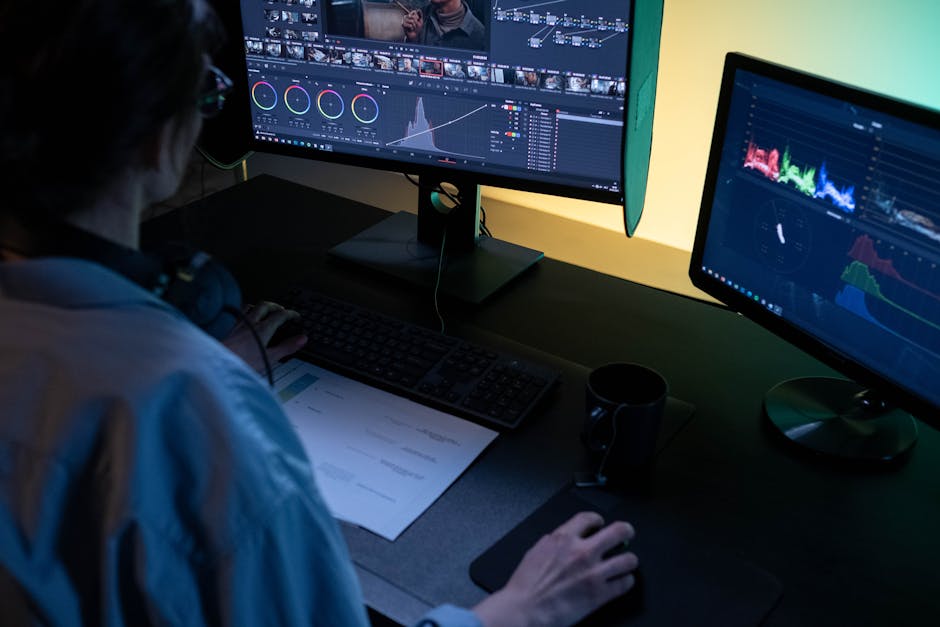
DaVinci Resolve is the most powerful free video editor on the market. It is also the most intimidating. The free version includes professional-grade color grading, Fusion visual effects, and Fairlight audio mixing, tools that Hollywood post-production houses use daily. For a beginner willing to invest time in learning, it is an extraordinary deal.
The catch is the learning curve. Our novice tester needed 45 minutes and three tutorial videos just to trim a clip and add text. The interface assumes you know what nodes, scopes, and timelines are. If you are patient and genuinely interested in video editing as a long-term skill, this investment pays off. If you want to post a TikTok tonight, it will frustrate you.
Katie Steckly's testing revealed a specific limitation of the free version: it cannot auto-generate captions. You must create subtitles manually, which adds significant time to short-form content workflows. The free version also lacks the AI-driven tools found in the paid Studio edition, including voice isolation, smart reframe, and automatic scene cut detection.
Hardware requirements are steep. Blackmagic Design recommends 16GB of RAM and a dedicated GPU with at least 4GB of VRAM. Our test laptop with integrated graphics struggled during playback of 4K footage. If your computer is older or budget-tier, DaVinci Resolve will not run smoothly.
Best for: beginners who want to learn a professional tool from day one without paying a subscription, and who have a computer that can handle it.
3. CyberLink PowerDirector (Best Paid for Speed)
CyberLink PowerDirector earned the top spot in diyvideoeditor.com's comprehensive 2026 comparison, and our testing confirmed its strength: raw rendering speed. On our modest test laptop, PowerDirector exported a 60-second 1080p video with effects in under 30 seconds. CapCut took nearly a minute for the same file.
The interface is designed for speed. Effects, transitions, and titles live in a drag-and-drop library that previews instantly when you hover over them. Beginners can build a polished video without touching a single manual keyframe, though the option exists for those who want it.
Pricing is transparent but worth understanding before you commit. The basic PowerDirector 365 plan costs $49.99 per year and includes the core editor, a library of stock footage and music, and regular updates. The Director Suite 365 plan at $89.99 per year adds photo editing and audio tools. There is also a one-time purchase option for PowerDirector 2026 Ultimate at $139.99, but it does not include the ongoing stock asset library or future version updates.
The AI tools are the headline feature. AI body effects track motion without manual masking, AI sky replacement swaps out dull backgrounds in one click, and AI motion tracking pins graphics to moving objects cleanly. For beginners who want to add flashy effects quickly, PowerDirector delivers without a learning curve.
Best for: beginners with $50 to spend who value speed and effects over deep manual control.
4. iMovie (Best for Mac Users Only)
iMovie comes pre-installed on every Mac, iPhone, and iPad, and for casual projects it is hard to beat. The interface is Apple-clean: a single timeline, a handful of transitions, and a library of trailer templates that make family vacation videos look surprisingly cinematic.
For Mac users deciding between iMovie and CapCut, the question is what kind of content you are making. iMovie is more stable and better integrated with the Apple ecosystem. Footage shot on an iPhone appears instantly in your iMovie library via iCloud. The export presets are optimized for Apple devices and YouTube.
CapCut pulls ahead for short-form social content. Its auto-caption feature alone saves 10 to 15 minutes per video compared to iMovie's manual title tool. CapCut also offers trend-aware templates, effects, and transitions that iMovie simply does not have.
iMovie's limitations become apparent quickly. There are no advanced audio controls beyond a basic noise reduction slider. The export options are limited to a few preset resolutions and frame rates. You cannot adjust color beyond a handful of built-in filters. For a beginner making casual family videos or very basic YouTube content, these limits do not matter. For anyone who wants to grow as an editor, iMovie becomes a ceiling within a few months.
Best for: Mac users making casual content who value stability and simplicity over features.
5. Wondershare Filmora (Best for Creative Templates)
Filmora occupies the middle ground between CapCut's simplicity and Premiere's complexity. Its signature strength is the template library: hundreds of pre-built title animations, transition packs, and effect collections that let beginners produce "viral-style" content without designing anything from scratch.
The drag-and-drop workflow is genuinely intuitive. Our novice tester built a 60-second video with animated text, a picture-in-picture overlay, and a color grade in under 20 minutes without consulting a tutorial. The timeline behaves the way you expect it to, and the preview window updates in real time as you adjust effects.
Pricing requires attention. Filmora offers a free version, but it exports with a prominent watermark across the center of your video. To remove it, you need a subscription. The annual plan costs $49.99, which is competitive with PowerDirector. Filmora also offers a "perpetual" one-time purchase option at $79.99, but this only covers the current version; major updates require a new purchase.
The template library is a double-edged sword. It accelerates the editing process dramatically, but it can also make your content look generic. Beginners who rely too heavily on templates may find their videos resemble dozens of others using the same packs.
Best for: beginners who want to create polished, effects-heavy short-form content quickly and are willing to pay $50 per year.
The "Graduation" Roadmap: Where to Start and When to Upgrade
Nathan's graduation framework, developed over years of creating content for 18 million subscribers, is the clearest upgrade path we have found. He recommends starting with CapCut and staying there for your first 200 to 300 videos. That number sounds high, but it reflects a reality most beginners ignore: editing speed and creative fluency matter more than advanced features for a very long time.
The question is when to leave. Here is a specific skill check. If you can do all five of these things in CapCut without looking up a tutorial, you are ready to upgrade:
Trim and arrange clips on the timeline without accidentally shifting your audio out of sync. Apply and customize keyframe animations to text and overlays. Use masking to create a picture-in-picture effect or hide an object. Mix multiple audio tracks with manual volume keyframes. Export a video with custom resolution and bitrate settings that match your platform's requirements.
When you hit a wall, meaning CapCut cannot do something you genuinely need, your next step depends on your budget and goals. Move to DaVinci Resolve if you want to stay free and are willing to learn a professional tool. Move to PowerDirector if you have $50 and want to add advanced effects without a steep learning curve.
The final destination for serious creators is Adobe Premiere Pro. Nathan and most large YouTubers use it. But starting there is a mistake. Premiere's interface assumes professional knowledge, its system requirements are demanding, and its subscription costs $22.99 per month. It is the right tool for your 500th video, not your first.
Free vs. Paid: The Real Cost of "Free" Video Editing
Free video editing software is rarely free of limitations. Here is what each option actually costs in 2026.
CapCut remains the only truly free option with no major restrictions. No watermark, no export resolution cap, and all AI features including auto-captions work without payment. ByteDance funds it as part of their ecosystem strategy, so the free tier is genuinely generous.
DaVinci Resolve's free version is powerful but missing specific features. You lose auto-captions, AI voice isolation, smart reframe, and several advanced color grading tools. The watermark situation is clean: no logo on your exports. The real cost is hardware. You need a capable computer, and if your laptop does not meet the spec, the software simply will not run smoothly.
Filmora's free version adds a watermark to every export. You cannot remove it without paying. The trial lets you test the full feature set, but anything you export is stamped until you subscribe.
PowerDirector offers a 30-day free trial with full functionality and no watermark. After the trial, you must subscribe or purchase a license to continue exporting.
For the budget-conscious beginner, the strategy is clear. Start with CapCut. If you need more power, try DaVinci Resolve's free version first. Only pay for software when a free tool demonstrably cannot do something you need to do, and always test the trial version of any paid editor before committing to a subscription.
What About Mobile-Only Editors? (InShot, VN, KineMaster)
Some beginners edit exclusively on their phones. They do not own a laptop, or they film and post entirely within their phone's ecosystem. For these users, desktop recommendations are irrelevant.
InShot is the easiest mobile editor to learn. The interface strips editing down to its essentials: trim, split, adjust speed, add music, and export. There is no multi-track timeline, no keyframing, and no color grading beyond basic filters. For Instagram Stories, TikTok drafts, and quick social cuts, it is perfectly adequate. The free version adds a watermark and includes ads; the paid version removes both for a one-time fee of around $15.
VN Video Editor occupies the middle ground. It offers a multi-track timeline, customizable keyframe animations, and a decent selection of transitions, all without a watermark in the free version. The interface is closer to a desktop editor shrunk to phone size, which means a steeper learning curve but more creative control.
KineMaster provides the most professional feature set on mobile, including chroma key, blending modes, and fine-grained audio controls. The free version adds a watermark; the premium subscription costs $4.99 per month. For a beginner who wants to learn serious editing but only has a phone, KineMaster is the closest equivalent to a desktop tool.
The trade-off is growth potential. Mobile editors are faster to learn but severely limit your ability to develop advanced skills. Multi-track audio mixing, precise color grading, and complex compositing are either impossible or deeply frustrating on a phone screen. Our recommendation: use mobile editors for social media stories and shorts, but switch to desktop CapCut for any project you want to take seriously. The skills transfer, but the ceiling is much higher.
Frequently Asked Questions
What is the best free video editing software for beginners in 2026?
CapCut. It is the only free option with no watermark, no export resolution cap, and full access to AI features including auto-captions and text-to-speech. DaVinci Resolve is more powerful but has a steep learning curve and higher system requirements.
Should I start with CapCut or Adobe Premiere?
Start with CapCut. Adobe Premiere is professional software designed for experienced editors. Its interface will overwhelm a beginner, and its $22.99 monthly subscription is expensive for someone still learning basic cuts. Follow Nathan's framework: master CapCut for your first 200 to 300 videos, then evaluate whether you need Premiere.
Is DaVinci Resolve good for beginners?
Yes, but only if you are willing to watch tutorials. It is not intuitive out of the box. The interface assumes familiarity with professional editing concepts. If you are patient and committed to learning video editing as a long-term skill, DaVinci Resolve's free version is an extraordinary value. If you want to post a video tonight, choose CapCut instead.
What video editing software do YouTubers use?
Most large YouTubers use Adobe Premiere Pro, but they did not start there. Nathan from Unspeakable edited his first 200 to 300 videos in Windows Movie Maker before moving to Sony Vegas and eventually Premiere. The tool does not make the creator. Start simple and upgrade when your skills demand it.
Can I edit 4K video on a cheap laptop?
Yes, but you need proxy editing. Both CapCut and DaVinci Resolve support automatic proxy generation, which creates lower-resolution copies of your footage for smooth editing and then applies your edits to the full-resolution files during export. Avoid PowerDirector on low-end hardware; its rendering engine is fast but its playback performance suffers without a dedicated GPU.
Final Verdict: Which One Should You Download First?
CapCut is the best editing software for beginners in 2026. It costs nothing, adds no watermark, runs on almost any computer or phone, and includes AI tools that save hours of manual work. Download it today, import a few clips, and finish a 30-second video. The first edit is the hardest, and CapCut makes it easy.
If you are serious about learning professional editing and have a capable computer, DaVinci Resolve is the runner-up. Its free version offers tools that paid competitors charge hundreds of dollars for. Just budget time for the learning curve.
If you have $50 and want speed, PowerDirector delivers the fastest rendering and the most accessible effects library of any paid beginner tool.
Do not overthink this. The best software is the one you actually open and use. Pick one, edit something, and post it. Your first video will not be perfect. Your hundredth will be better. The fractal grows one branch at a time.
Which editor are you trying first? Let us know in the comments below.
Ready to Grow Your YouTube Channel?
Fractal Video Shufflr Pro includes our complete YouTube growth course, advanced editing tools, AI-powered features, and much more. Join thousands of creators who are growing faster with Fractal Video Shufflr.